
Free timesheet template: weekly hours by client and project
Download a free weekly timesheet template for Excel, CSV or Google Sheets. It records hours per day against a client, project and task, separates billable from non-billable time and totals the week automatically, so the hours are ready for approval, invoicing and project costing. PLYNTUM built it for teams that sell their time.
Free, no sign-up · .xlsx with formulas · opens in Google Sheets
Key facts
- Formats
- Excel (.xlsx) with formulas and CSV; the .xlsx opens in Google Sheets.
- Cost
- Free, no sign-up and no email address needed.
- What it records
- Hours per day by client, project and task, with billable and non-billable totals.
- Not included
- Payroll, overtime pay and tax calculations.
Excel · .xlsx with formulas · opens in Google Sheets
CSV · Same columns, no formulas
Collecting timesheets from the team every week? In PLYNTUM people log hours on the task or client they belong to, on every plan, and logged hours show how much time the team really spends on each client.
What is in the template
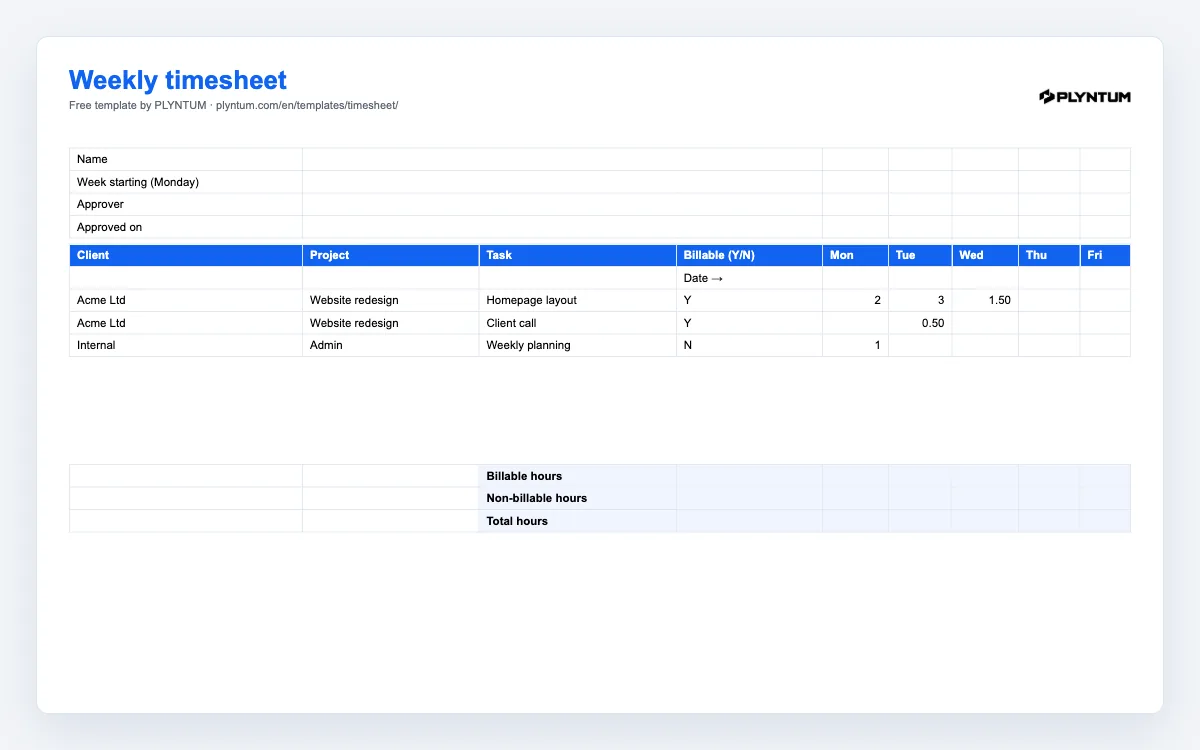
The workbook has two sheets. Weekly timesheet is the one you fill in: a header with the person’s name, the week and the approver, then one row per piece of work with the client, project, task, whether it is billable, the hours for each day from Monday to Sunday and a row total. At the bottom it adds up billable hours, non-billable hours, the week’s total and the billable share of the week. How to use repeats the rules below so the file explains itself when it is passed around.
The CSV file has the same columns without formulas, for importing into another tool or opening in Google Sheets. To use the formulas in Google Sheets, upload the .xlsx file and open it with Google Sheets; the totals keep working.
The Georgian version of this page has the official form as set by Order No. 01-15/ნ in its edition of 28 April 2023, the latest on matsne.gov.ge when checked on 24 October 2026, and how to fill in the Georgian timesheet form explains it column by column.
How to fill it in
- One row per piece of work. Client, project and task, so that an hour can later be priced and costed.
- Mark each row billable or not. Internal meetings, proposals and training are real hours, but they are not sold.
- Enter hours every day, not on Friday. A timesheet reconstructed at the end of the week is mostly guesswork.
- Use quarter hours. 0.25 is precise enough and quick to enter.
- Send it for approval at the end of the week. The approver checks the hours against the plan before they reach an invoice.
- Keep approved sheets unchanged. Corrections go into the next week with a note, so the record stays trustworthy.
From timesheet to invoice and margin
Logged hours are the raw material for three numbers: what to invoice on hourly work, what a fixed-fee project really cost, and how much of the team’s paid time was sold. Multiply approved billable hours by the agreed rate for the invoice. Multiply all hours on a project by each person’s loaded hourly cost, from the hourly rate calculator, and compare the total with the project value to see the margin.
The billable share at the bottom of the sheet is the person’s utilization for the week. Read the article on utilization rate before you set targets with it, and the one on lost hours if the totals look lower than the work you remember.
When a spreadsheet stops working
A shared spreadsheet works well for one to five people who trust each other’s numbers. It starts to fail when files multiply by person and by week, when nobody can tell which version was approved, and when hours and invoices sit in files nobody checks against each other.
In PLYNTUM, hours are recorded against tasks that already belong to a project and a client, so the client and project columns fill themselves. Time tracking is part of every plan; manager approval of timesheets starts with Core. Logged hours become cost on the project. There is no automatic desktop time capture today, and PLYNTUM does not run payroll.
Employers in Georgia
Georgian law requires employers to record working time on an official form with its own columns and codes. The Georgian version of this page offers that form, built on Order No. 01-15/ნ of the Minister of Labour as amended on 28 April 2023: სამუშაო დროის აღრიცხვის ფორმა.
Common questions
Start with the work that keeps getting stuck.
Bring one project into a connected workspace. See the work, the people and the cost together.