Project management software for client work
The brief changed. Did the plan? A client asks for one more change. The deadline stays Friday. The team is still working from yesterday’s instructions.
The next step becomes clear.
Keep the request, task, owner, files and decision together. Update the scope where the team works.
See the next connection Workspace / Website launchN
How it looks in PLYNTUM.
Screens from a demo workspace with sample data, as the product looks today.
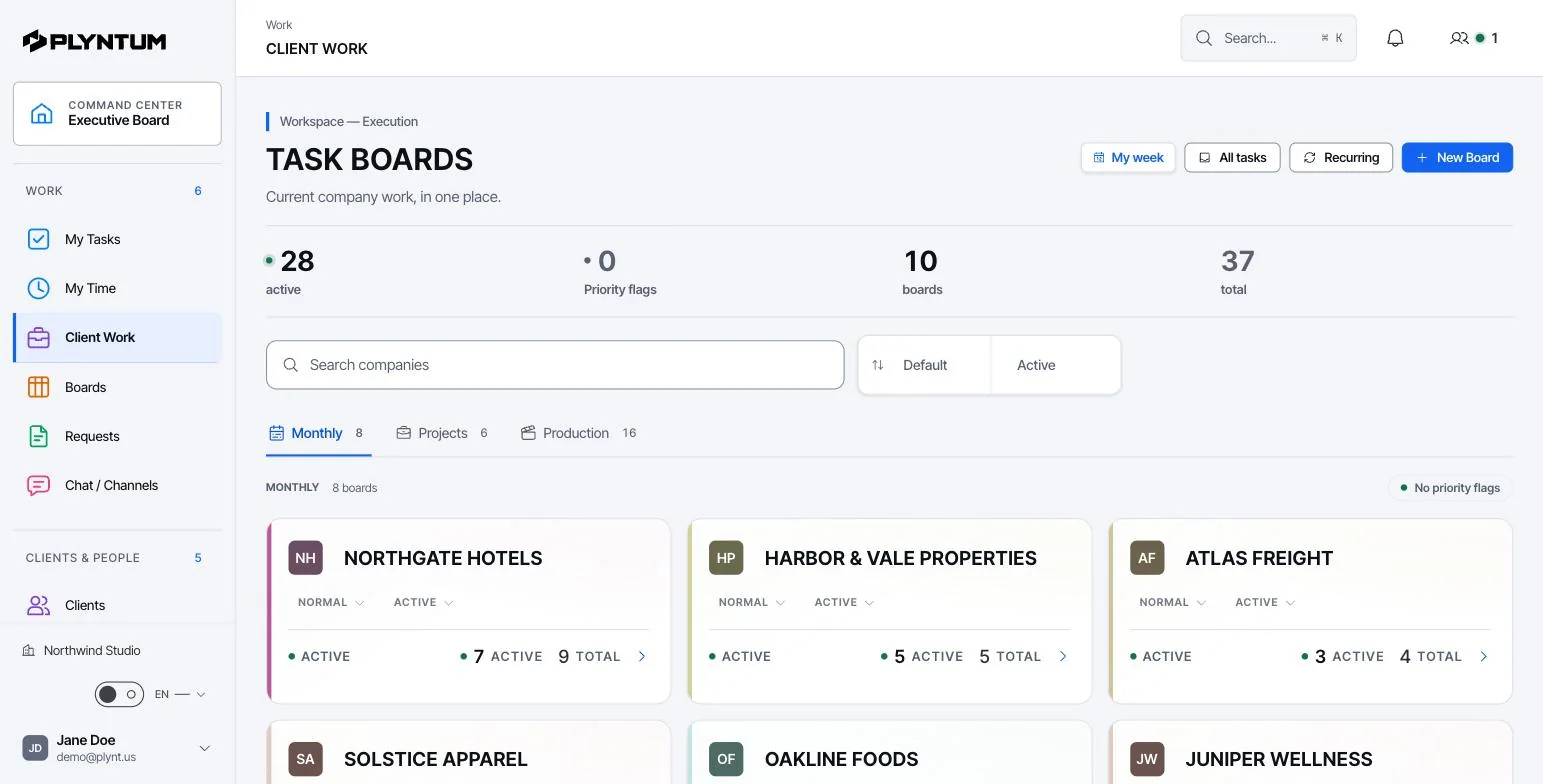
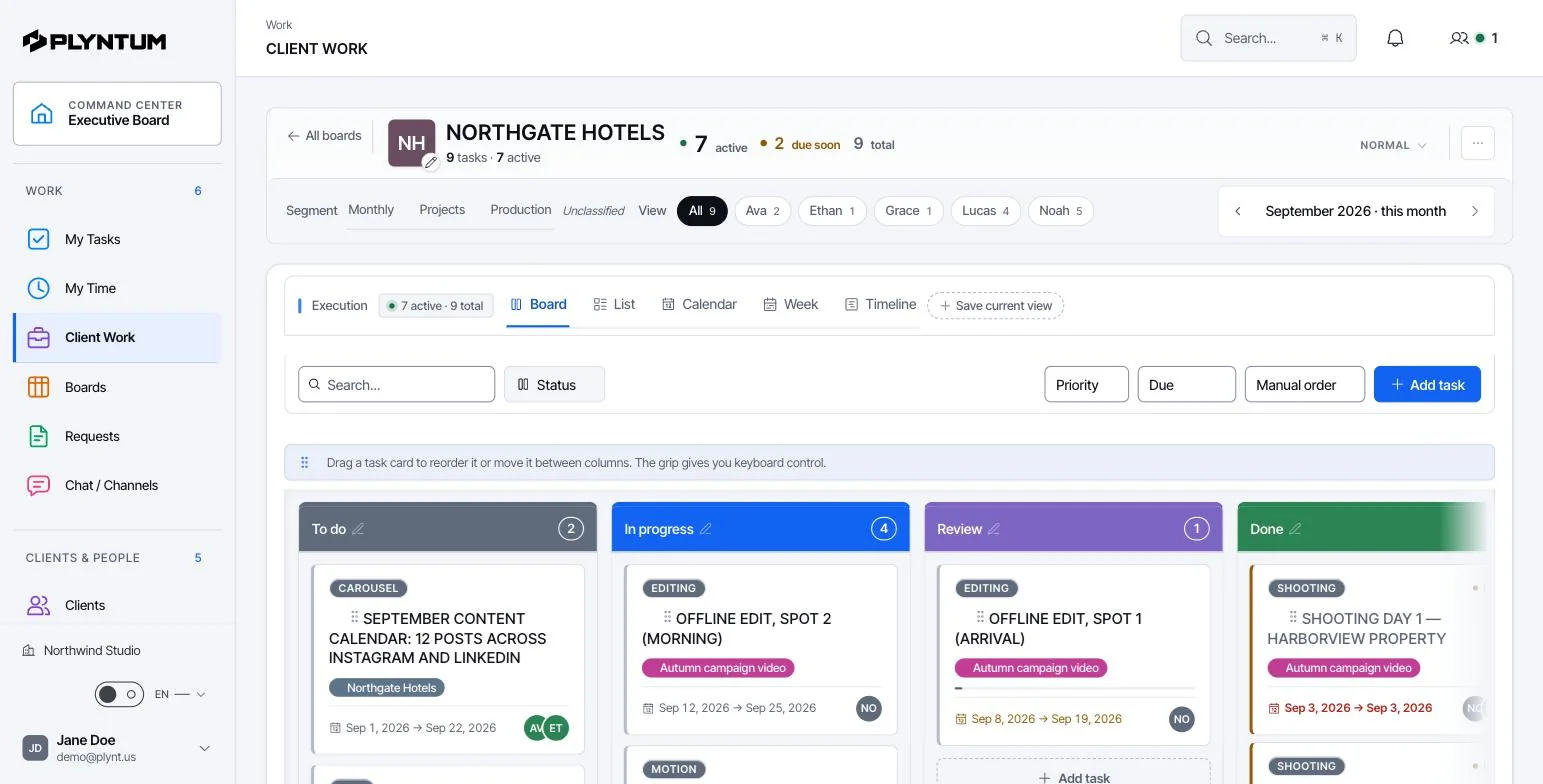
What stays connected.
The details behind the workflow, including what is available and what is still planned.
THE CONNECTION
A changed client brief can affect the deadline, the people assigned and the cost of delivery. Keep the agreed scope beside the tasks, files and decisions so the team can see what changed before accepting more work. Use logged hours to follow the effort that went into the project.
See AI planning Explore reviewed work time
Company-specific boards
Set the fields, stages and responsibilities to match how your team works. Keep each company’s tasks on its own boards so people can see what is due and who is responsible.
The full history of each task
See the original request, discussions, approvals and reviewed work time alongside the task. The next person can understand both the decision and the work behind it.
Task Composer, in development
Task Composer is in development to turn a brief into a proposed task plan. It is intended to highlight missing information before the team reviews the plan and starts work.
Also in the system
Table, Kanban, calendar, timeline, dependencies, custom fields, files and recurring work.
TASK COMPOSER / PRODUCT DIRECTION
Task Composer is in development to turn a brief into a draft plan: deliverables, subtasks, acceptance criteria, dates, dependencies and suggested owners. The proposed workflow lets you check missing details before assigning the work.
Further reading: Missed deadlines often start with a request nobody owns.
Project management tools, project management software, a task management app: the searches differ, the work is the same. Each task gets an owner, a date, its brief and files, and every plan shows the same tasks as a list, a kanban board, a calendar, a week or a timeline. Logged time sits on the task, so the hours behind each piece of work are in the same place.
There is no App Store or Google Play app. PLYNTUM works in the phone’s browser, so the team opens its tasks and logs time from a phone without installing anything.
The task side has its own page: task management software covers what a task holds in PLYNTUM, the five views, the phone app question and the plan limits.
How work moves through PLYNTUM
Agreed work becomes a task with an owner, a date and its context. The same record later shows the time that went into it and what it meant for the client.
Set up the board
Create boards for each company and choose the stages, fields and responsibilities your team already uses. List, board, calendar, week and timeline views show the same tasks in different ways.
Turn the brief into tasks
Break the agreed work into tasks and subtasks, give each one an assignee and a deadline, and link the tasks that depend on each other. Attach the client brief and files to the work itself.
Keep decisions on the record
Comments, approvals and changes stay with the task. When the brief changes, the team can see what was agreed before and decide whether the date or the scope has to move.
Connect the effort
Logged time is linked to the task, so the project shows the hours behind the delivery. Finance uses the same hours to explain what the work cost.
Who uses it
- Project managers
- Plan the week on the board, see which tasks are waiting on another task and discuss a date change in the task where the work lives.
- Team members
- Open a task and find the brief, files, owner, date and earlier decisions in one place, without asking in a separate chat.
- Company leaders
- See what each company is delivering. When something is late, find the task, the person and the change that caused it.
Available today and in development
| Tasks, subtasks, assignees and deadlinesAll plans | Available |
|---|---|
| List, board, calendar, week and timeline viewsAll plans | Available |
| Company boards and custom fieldsLaunch: 10 boards, 20 projects. Core: 20 boards, 50 projects. Scale and Intelligence: no limit. | Available |
| Dependencies, files and recurring work | Available |
| Comments and team chatExpanded channels are in development. | Available |
| Task Composer: a brief becomes a draft plan | In development |
What it replaces
Tasks often sit in one tool, the brief in email, files in a shared drive and hours in a spreadsheet. Every move between them is a place where a change can be missed. In PLYNTUM they sit on the same record. If you already use a task tool, move one active project first and compare how often the team has to look for context.
- Task list or kanban tool
- Brief in email threads
- Client folders on a shared drive
- Hours in a spreadsheet
Your first week
- Create one board for a live project and match its stages to how the team works now.
- Invite the people on that project and give every open task an owner and a date.
- Attach the brief and files to the tasks, then log the week’s time against them.
Connected areas
Common questions
Start with the work that keeps getting stuck.
Bring one project into a connected workspace. See the work, the people and the cost together.